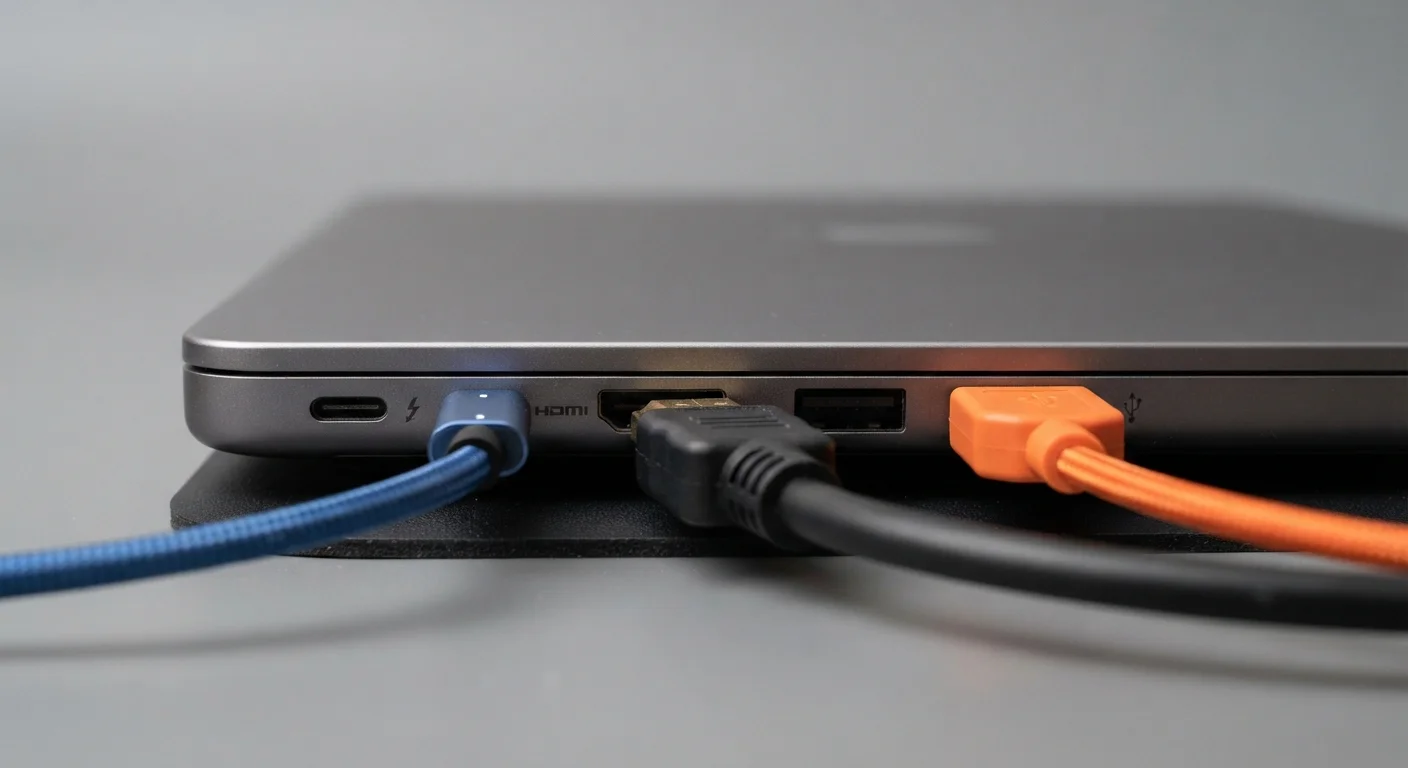
Wired Ports: What the Labels Actually Tell You
Port labels on a spec sheet look straightforward until you realize "USB" covers a dozen incompatible speed tiers and connector shapes. Here's how to read them without a decoder ring.
| USB-C max speed (Thunderbolt 4) | 40 Gbps (USB Implementers Forum / Intel Thunderbolt specification) |
| USB 3.2 Gen 2 max speed | 10 Gbps (USB Implementers Forum) |
| HDMI 2.1 max bandwidth | 48 Gbps (supports 4K/120Hz, 8K/60Hz) (HDMI Forum specification) |
| Wi-Fi 6E frequency band added | 6 GHz (in addition to 2.4 GHz and 5 GHz) (Wi-Fi Alliance) |
| Bluetooth 5.0 range vs. 4.2 | Up to 4× longer range (Bluetooth Special Interest Group) |
| DisplayPort 2.1 max bandwidth | 80 Gbps (UHBR20 mode) (VESA DisplayPort 2.1 specification) |
USB-A vs. USB-C
USB-A is the rectangular plug you've used for years. Its speed depends entirely on the version behind it: USB 3.2 Gen 1 tops out at 5 Gbps, while USB 3.2 Gen 2 reaches 10 Gbps. The connector shape tells you nothing about speed - you must check the version number.
USB-C is the oval, reversible connector now standard on most new devices. The connector shape is consistent, but performance varies wildly. A USB-C port might deliver USB 2.0 speeds (480 Mbps) or, if it supports Thunderbolt 4, up to 40 Gbps with video, data, and power delivery over a single cable. Always verify the protocol behind the port, not just its shape.
HDMI Versions
HDMI 2.0 handles 4K at 60 Hz. HDMI 2.1 raises the ceiling substantially - 4K at 120 Hz, 8K at 60 Hz, and support for variable refresh rate (VRR), which reduces screen tearing in games. If you're connecting to a modern television or monitor for high-frame-rate content, the version number matters. For standard 1080p video, it does not. See our electronics spec sheet glossary for definitions of related display terms like refresh rate and resolution.
Thunderbolt
Thunderbolt (developed by Intel) uses the USB-C connector but layers additional capabilities on top: high-bandwidth data transfer, daisy-chaining up to six devices, and driving external displays. Thunderbolt 4 standardized minimum performance requirements that Thunderbolt 3 left variable. Thunderbolt ports are backward compatible with USB-C devices, but a USB-C cable will not unlock Thunderbolt speeds on a Thunderbolt port.
Wireless Standards: When the Version Number Changes Everything
Wireless connectivity specs follow the same pattern as wired ones - the version number signals real capability differences, not just marketing increments.
Gbps
Gigabits per second - a measure of data transfer speed. Higher numbers mean faster file transfers and more bandwidth for video output. 1 Gbps equals 1,000 Mbps.
Thunderbolt 4
A high-performance protocol from Intel that uses the USB-C connector. It guarantees 40 Gbps transfer speeds, dual 4K monitor support, and power delivery - capabilities USB-C alone does not require.
OFDMA
Orthogonal Frequency-Division Multiple Access - a Wi-Fi 6 technology that allows a router to communicate with multiple devices simultaneously in a single transmission, improving efficiency in busy wireless environments.
VRR (Variable Refresh Rate)
A display feature, supported by HDMI 2.1 and DisplayPort, that synchronizes the screen's refresh rate to the output device in real time, reducing stutter and screen tearing during video or gameplay.
LE Audio
A Bluetooth 5.2 feature set enabling multi-stream audio, improved call quality through the LC3 codec, and hearing-aid interoperability. Devices on both ends must support it to benefit.
Backward Compatible
A device or port that works with older-generation cables or accessories, typically at the lower standard's speed or feature set rather than the newer one.
Wi-Fi Generations
Wi-Fi 5 (802.11ac) operates on the 5 GHz band and remains capable for most household streaming and browsing. Wi-Fi 6 (802.11ax) adds efficiency improvements - particularly in dense environments with many simultaneous devices - through a technology called OFDMA, which lets the router serve multiple devices in a single transmission window. Wi-Fi 6E extends Wi-Fi 6 into the 6 GHz band, reducing congestion in apartment buildings and offices where the 2.4 GHz and 5 GHz bands are crowded. If your router doesn't support 6E, a 6E-capable device gains no benefit from that band.
For most single-family households with moderate device counts, Wi-Fi 5 hardware remains fully adequate. Wi-Fi 6/6E delivers the most tangible benefit in high-density environments or when many devices stream simultaneously. For a deeper look at how wireless choices play out across device categories, see our guide on wired vs. wireless trade-offs.
Bluetooth Versions
Bluetooth 5.0 doubled the range and quadrupled the broadcast capacity of Bluetooth 4.2. Bluetooth 5.2 introduced LE Audio, which enables multi-stream audio (sending separate audio streams to each earbud) and the LC3 codec, which maintains audio quality at lower bit rates - useful for call audio and accessibility features. Version numbers below 5.0 on new devices are a red flag for longevity.
Cable Quality Can Be the Hidden Bottleneck
A Thunderbolt 4 port paired with a generic USB-C cable will not deliver Thunderbolt speeds. Certified cables carry a logo or rating on the packaging. When a port underperforms expectations, the cable is the first thing to verify - not the device itself. This is especially true for long cables, where cheaper options drop to USB 2.0 speeds even on high-version ports.
DisplayPort and Thunderbolt for Monitors
DisplayPort 1.4 and DisplayPort 2.1 are common on desktop GPUs and monitors. DisplayPort 2.1 supports up to 16K resolution in theory, and more practically enables 4K at 240 Hz - relevant for high-refresh gaming monitors. If a monitor lists "Thunderbolt" as its input, it uses the USB-C connector and requires a Thunderbolt-capable source device to achieve full bandwidth.
For a complete foundation before evaluating any device's connectivity claims, the electronics literacy guide for first-time buyers covers how connectivity fits alongside performance, display, and battery decisions.